
Want to know how to hide the locations of categories in tab settings? Here’s what you need to do Follow the steps below for a seamless process:
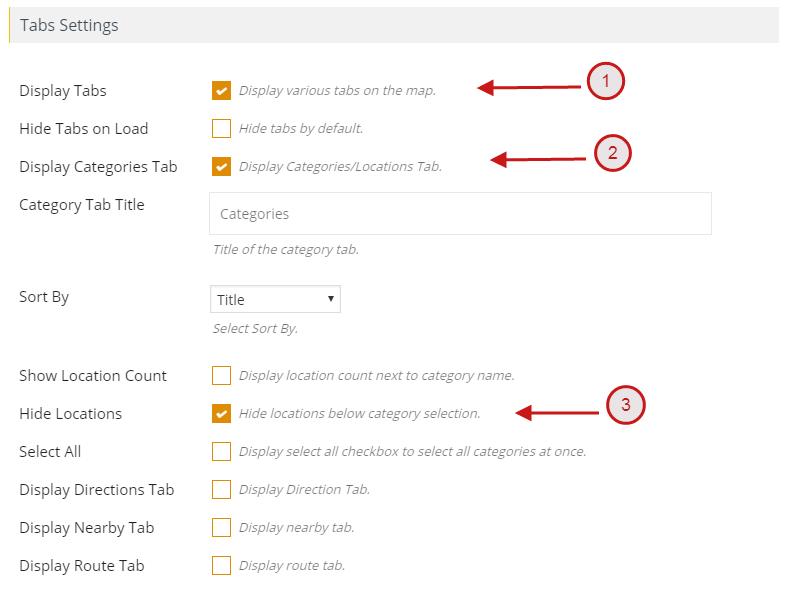
Step 1 Start by heading over to the Manage Maps page. Scroll down until you reach the Tabs Settings section and you’ll be able to add or edit your map as needed. There, you can easily hide the location of any category in your Tab Settings.
Step 2 Go to the Display Tabs section and enable both the ‘Display Tabs’ option and the ‘Display Categories Tab’ option. After this is done, you will be able to easily hide the category locations from being visible.
Step 3 Then check the Hide Locations tab. (see screenshot)
Step 4 Open the frontend map page and select the “Save Map” option. Once you have saved the map.
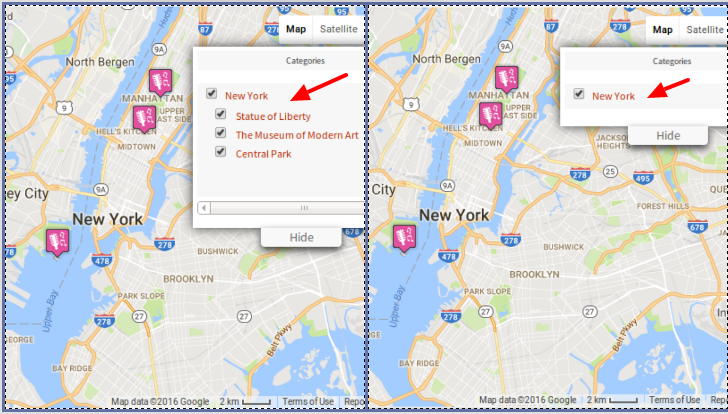
Now You’ll see locations hidden from the categories tab.
Related Tutorials:
- How to assign location using ACF Plugin
- How to display infowindow message of each location
- How to change the title of the categories tab title
- How to create a marker category
- How to display Multiple Routes On Same Map
Related Examples:
- Sort locations in listings
- Display maps using ACF (Advanced Custom Fields)
- Load a map according to the visitor’s location
- Display multiple filters by location fields
- Filter by category in Google Maps
 Proudly crafted & developed by flippercode.com