
InfoWindows are an important feature of WP MAPS PRO that allow you to add additional information such as text, images, and videos to any marker on your map. To display infowindow messages on individual locations, follow these simple steps:
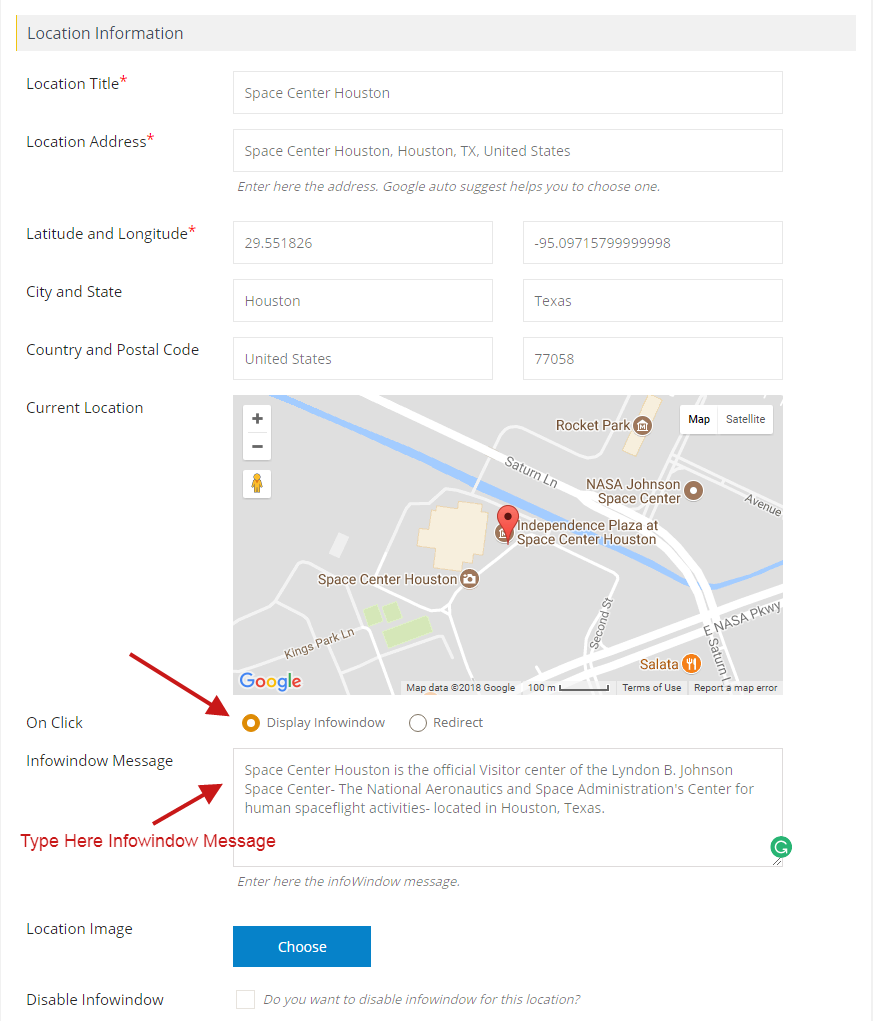
Step 1 Go to Add Location or Manage Locations > Edit Location page.
Step 2 Select Display Infowindow from On Click. By default, it is selected.
Step 3 Enter the Message in Infowindow Message tab. You can use HTML elements as well.
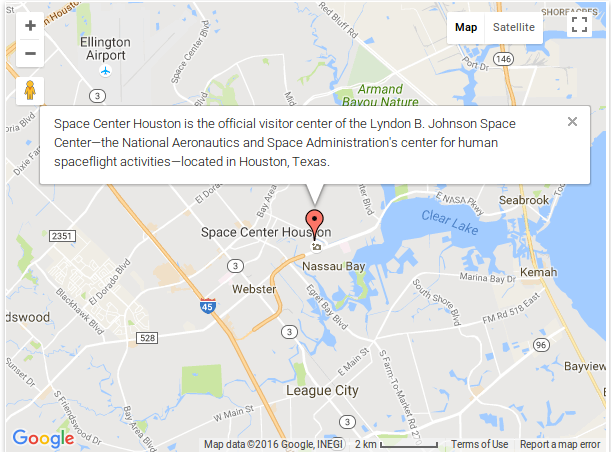
Step 4 Click on Save Location and open the frontend map page. You’ll see the infowindow message on the marker click.
Related Tutorials:
- How to assign a location in a map
- How to redirect to URL by click on Google Maps marker
- How to customize info window in WP Maps Pro
- How to assign location using ACF Plugin
- How to display extra field value as clickable link inside infowindow or listing
Related Examples:
- Infowindow customization
- Acerra Infowindow Skin
- Fano Infowindow Skin
- Show messages on shapes in Google Maps
- Parma Infowindow Skin
Was this article helpful?
YesNo
 Proudly crafted & developed by flippercode.com