
By making use of this functionality, you will be able to set the limitation of locations per page in the listing. Follow the below steps to do this:
Step 1 Go to the Manage Maps page, now Add/Edit Map, and scroll down to the Listing Settings section.
Step 2 Enable the Display Listing tab and enter the number of locations you want to display in the Locations Per Page tab.
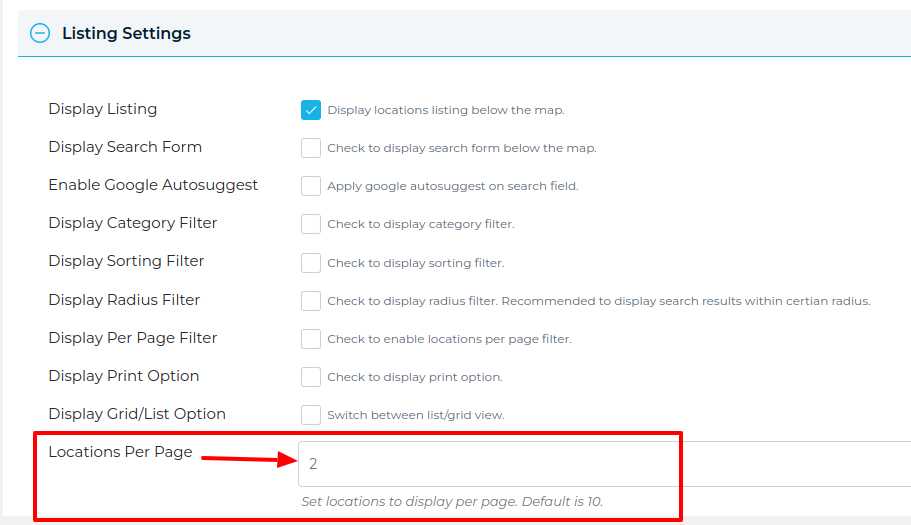
Step 3 Click Save Map and open the frontend map page.
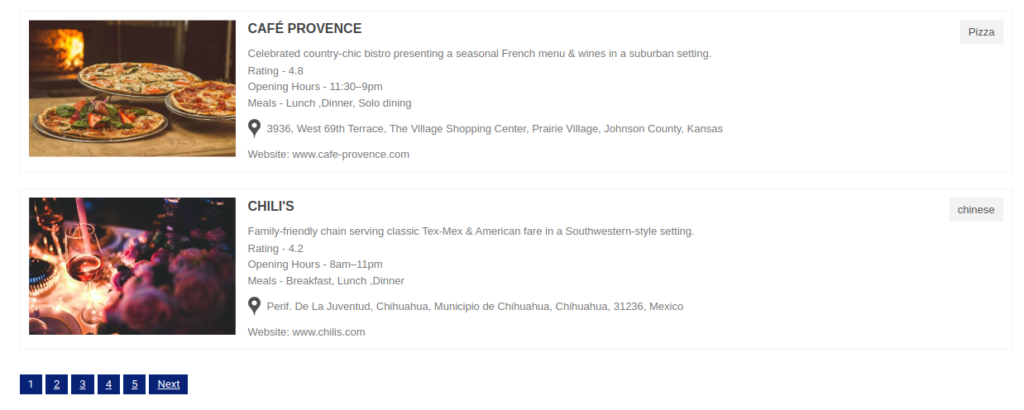
You’ll see 2 listings locations per page below the map and click to next display more locations.
Related Tutorials:
- How to assign multiple categories to a single location on Google Maps
- How to display search form, category sorting filter and radius filter
- How to change zoom level of the Google Maps on marker click
- How to use limit panning settings
- How to disable the Google Maps drag
Related Examples:
- Location filter using radius distance in Listing
- Stores Locator Example
- Advanced search on markers listing in Google Maps
- Multiple filters for listing below Google Maps
- Acerra Listing Skin
Was this article helpful?
YesNo
 Proudly crafted & developed by flippercode.com