
Want to hide markers on a map on page load? This guide will show you how! By hiding coordinates or markers on the page, you can keep your data and layout private until you’re ready to share it.
Step 1 Go to Add or Edit Map and Scroll down to the ‘Infowindow Settings’ section.
Step 2 Enable the box of ‘Hide Markers on Page Load’ option.
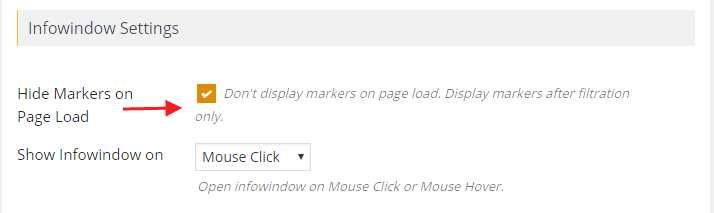
Step 3 Click on Save Map and open it in browser.
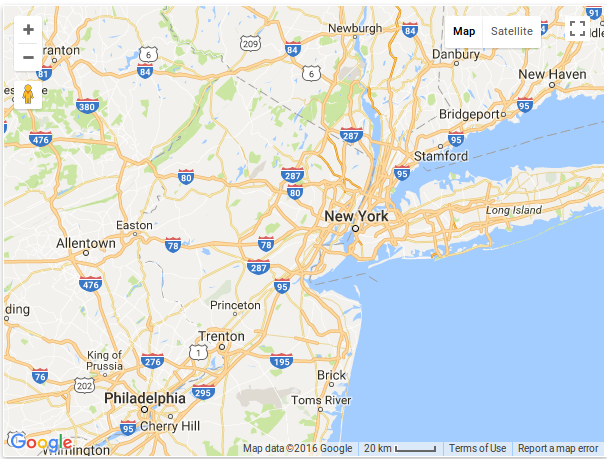
Then you will see location markers will not display on your assigned map.
Related Tutorials:
- How to customize the marker category icons
- How to create a marker category
- What are marker clusters and how to use
- How to hide markers on page load
- How to change zoom level of the Google Maps on marker click
Related Examples:
- Change center point on a marker click on a Google Map
- Bounce animation on marker click on a Google Map
- Paginated markers grid on Google Maps
- Display marker clusters on Google Maps
- Change zoom level on a marker click on a Google Map
Was this article helpful?
YesNo
 Proudly crafted & developed by flippercode.com